How to Find Files from the Command Line
Quick! You need more space on your laptop.
Those precious cat videos are several GB. They keep you from installing the new sexy MacOS. 😢
How do you find those bloated files to delete them?
The command line is your super power. 💪
Today, we'll look at the find command to... well... find files.
Stick to the end, and you'll see my favorite command line tool: FZF
Finding Files...
Yes, yes, I know. You can find files using the "search" feature of your Finder, Windows Explorer, or other GUI tool. You don't need the command line to search for files.
But sometimes, you don't have access to GUI tools with pretty windows. Sometimes, you SSH into a server and the command line's all you have.
More importantly, there are ways to find things from the command line that you just can't do with a GUI.
Let's walk through the find command.
find is a Unix-based tool. The examples below will work on Linux and MacOS. If you're on Windows 😰, run to WSL.
By name
Here's how it works. Say you know the name of the file but not where it's located. You enter three things:
- The command name:
find - Where to start looking
- The name of the file
The components are entered as find <where-to-look> -name <name-of-file>.
If you search the current directory (.) for some_file.txt, the find command gives output like this:
$ find . -name "some_file.txt"
./super/secret/location/some_file.txt
find will spit out the location of any matching files. Note how find searched the current directory and all nested directories recursively. The target file is in the nested folder ./super/secret/location/.
Do you know the file name but are not sure of capitalization? No problem. Use the -iname flag (instead of -name) to search by name without case sensitivity.
Perhaps you kinda know the file name but not the full name. Then use metacharacters like * or ? in the search pattern. Like many bash commands, * is a placeholder for any number of characters while ? represents exactly one character.
To get all files with names containing "me_file" while ignoring capitalization, enter this:
$ find . -iname "*me_file*"
./super/AmAzing_SomE_file.txt
./super/secret/location/some_file.txt
./super/SOME_FILE.txt
And we get three matches! 😃
By modified time
Want to find files modified a certain time ago? find has you covered. Here are some scenarios:
- Find files modified less than two days ago:
find . -mtime -2 - Find files modified over a week ago:
find . -mtime +7
The -mtime flag checks how many days ago the file content was changed. The sign and number after -mtime determine which time window is considered.
- For example,
-mtime -2means "less than2days ago" (note the minus sign). - Similarly, using a plus sign,
-mtime +7means "more than7days ago."
There's also a -mmin flag to check when the file was modified relative to minutes, not days.
By size
Maybe you don't care about the file name or when it was modified. You want to eliminate those huge files that are eating up storage. That's where the -size flag helps:
- Find large files over 30MB in size:
find . -size +30M - Find small files under 500KB in size:
find . -size -500k
As before, enter a sign and number to determine the range of sizes to consider. -size +30M means "more than 30MB" while -size -500k means "less than 500KB".
And now we see which files are taking up so much space:
$ find . -size +30M
./Videos/summer_2025/IMG_6787.MOV
./Videos/spring_2025/IMG_4496.MOV
./Videos/spring_2025/IMG_4633.MOV
./Videos/spring_2025/IMG_4614.MOV
./Videos/fall_2025/PXL_20251023_232137162.TS.mp4
./Videos/fall_2025/IMG_7013.MOV
./Videos/fall_2025/PXL_20251012_124044856.TS.mp4
There are those cat videos... 🐱
Doing Stuff with Those Files
Great! You can find files. But that's not interesting. Let's see what we can DO with those files. find has an -exec action to run some command for each file it returns.
For example, now that you have a pile of large files, you may want to sort them by size.
The first part of find is the same as before. At the end, you add -exec and the command to run for each file: du -h {}
$ find . -size +30M -exec du -h {} \;
140M    ./Videos/summer_2025/IMG_6787.MOV
196M    ./Videos/spring_2025/IMG_4496.MOV
73M     ./Videos/spring_2025/IMG_4633.MOV
48M     ./Videos/spring_2025/IMG_4614.MOV
235M    ./Videos/fall_2025/PXL_20251023_232137162.TS.mp4
144M    ./Videos/fall_2025/IMG_7013.MOV
207M    ./Videos/fall_2025/PXL_20251012_124044856.TS.mp4
The {} is a placeholder. After find has a list of matching files, it replaces {} with each file's path and then runs the du command.
The command ends with a semicolon. This indicates the command we're running for each file is over. You need to escape the semicolon with a backslash (\;) so the shell interprets the command termination properly. The output of du gives the file size and the path to the file.
With the file size now visible, you sort the results by piping the du output to the sort command. The -n flag sorts numbers numerically instead of by strings. -r reverses the order so the largest files are at the top.
$ find . -size +30M -exec du -h {} \; | sort -nr
235M    ./Videos/fall_2025/PXL_20251023_232137162.TS.mp4
207M    ./Videos/fall_2025/PXL_20251012_124044856.TS.mp4
196M    ./Videos/spring_2025/IMG_4496.MOV
144M    ./Videos/fall_2025/IMG_7013.MOV
140M    ./Videos/summer_2025/IMG_6787.MOV
73M     ./Videos/spring_2025/IMG_4633.MOV
48M     ./Videos/spring_2025/IMG_4614.MOV
Now we have a hit list of which files to delete first. 😎
find with -exec can also be used to perform file deletion. But be careful! 🚨 This command can remove more than you want. Run the rm command with the -i option to give confirmation each file should be deleted.
$ find . -size +30m -exec rm -i {} \;
rm: remove regular file './videos/summer_2025/img_6787.mov'? y
rm: remove regular file './videos/spring_2025/img_4496.mov'? y
rm: remove regular file './videos/spring_2025/img_4633.mov'? y
rm: remove regular file './videos/spring_2025/img_4614.mov'? y
rm: remove regular file './videos/fall_2025/pxl_20251023_232137162.ts.mp4'? y
rm: remove regular file './videos/fall_2025/img_7013.mov'? y
rm: remove regular file './videos/fall_2025/pxl_20251012_124044856.ts.mp4'? y
And just like that, you've removed the largest files and freed up storage space! That's faster than clicking through the GUI to find and delete files, right? 😏
We've just scratched the surface of the find command. Check out the man page to see all the neat things you can do with it.
FZF
The find command is great. But FZF is my go-to tool for finding files by name. fzf gives an interactive way to search any list using fuzzy matching. You simply type a few letters of the file you want, and fzf instantly gives results.
It goes like this. I enter the fzf command, and the terminal switches to the fzf interface, waiting for my search pattern. As I enter a few letters, the list reduces to files that match.
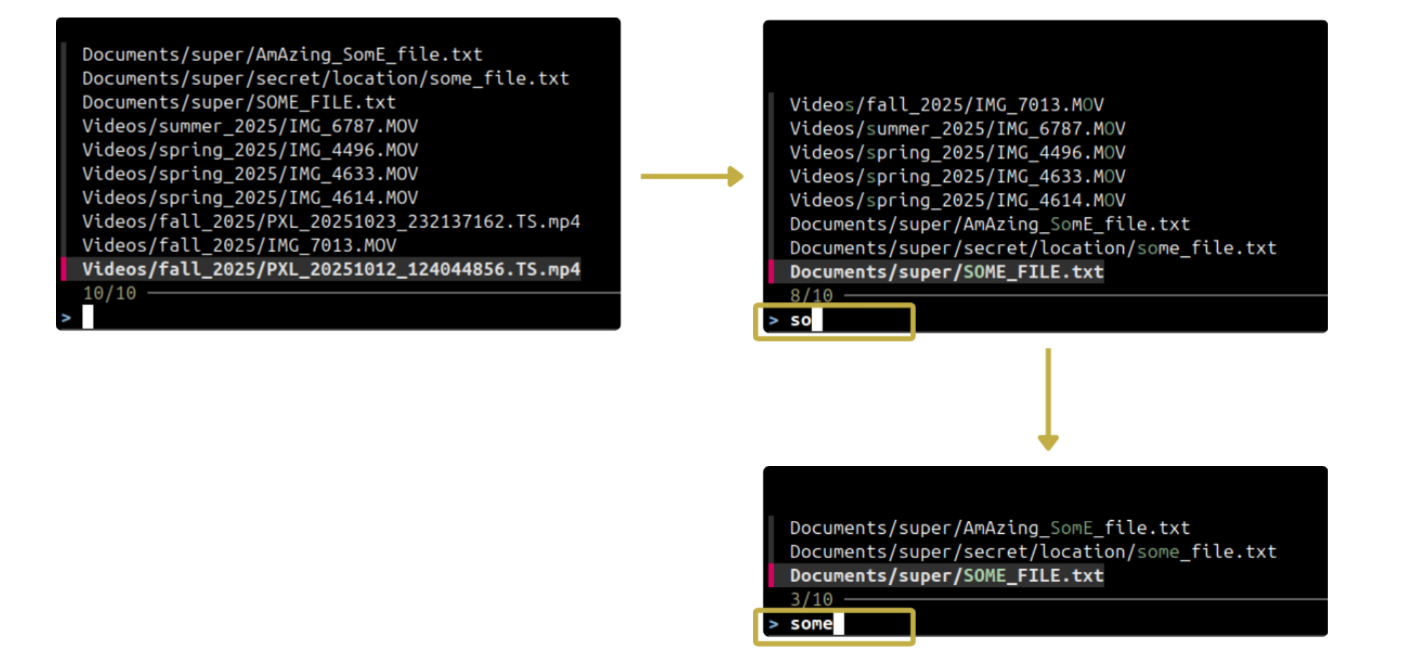
Neat! But FZF can do so much more. Pass the --preview flag to see what's inside each file as you search.
Suppose you're in a Django project looking for models.py files. On the command line, you enter fzf with --preview; then enter a tool used to display file content. The example below uses the bat util. The option --color=always applies syntax highlighting to the file content.
fzf --preview 'bat --color=always {}'
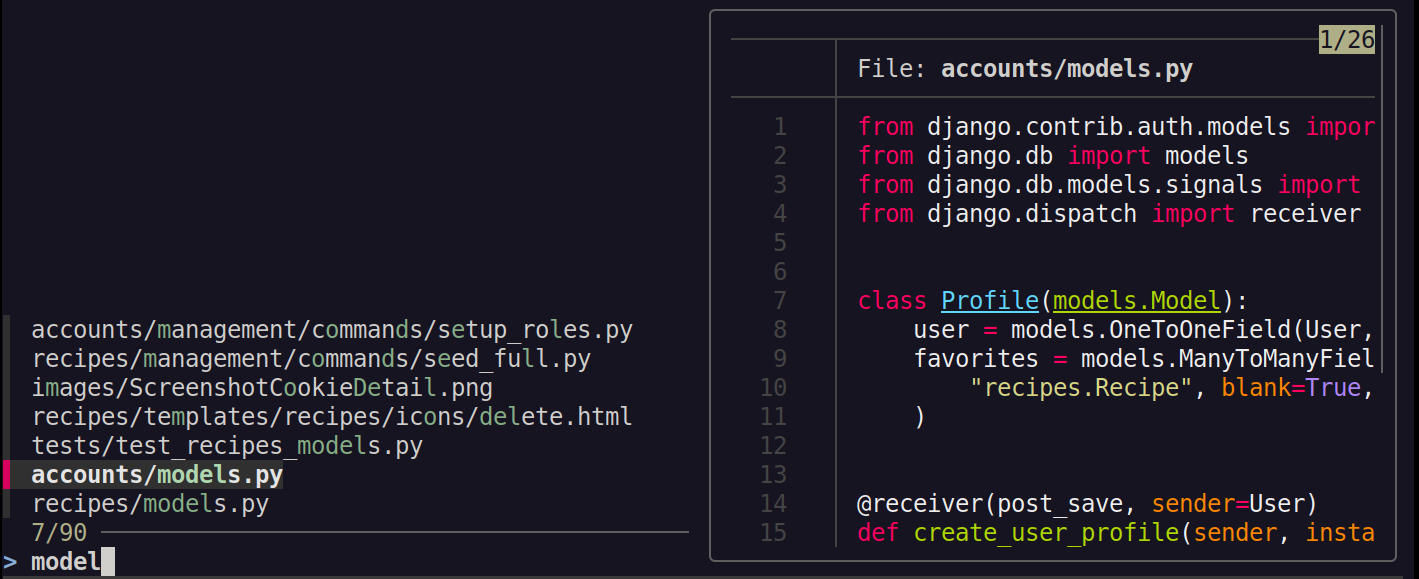
Enter the search pattern on the left (model), and see the file content on the right. Beautiful!
fzf is Unix-friendly, meaning you can combine it with other command line tools. For instance, you can pass the results of fzf to a file editor like vim. Running the command below will first start fzf; after you pick a file, the file will be passed to the vim command to open the file.
vim $(fzf)
Think of fzf as a Lego block that you can combine with other Unix commands. It's a must-have tool for day-to-day work. Check out the docs for more use cases beyond just searching for files.
Hopefully you believe me now. 😅 You can use a GUI-based file explorer to find files. But command line tools like find and fzf make your search easier. fzf is fantastic for finding files by name. find shines when you need advanced search criteria or when you want to do something with the search results.
What other tools do you use to find files efficiently? Let me know! You don't need the find command to find me.