Neovim Diff Mode
"One of these things is not like the other... one of these things doesn't belong." 🎶🎵
The Sesame Street song agonizes me as I stare at two nearly identical files.
By myself, I can't see the differences.
But I'm not alone. My best bud Neovim is here. 🤗 And he has a diff tool in his pocket.
Let's see how "diff mode" reveals file differences before Elmo runs me out of here.
Basics
First, let's do it the hard way -- open two files in Neovim side-by-side: nvim -O file1.txt file2.txt Can you spot the differences?
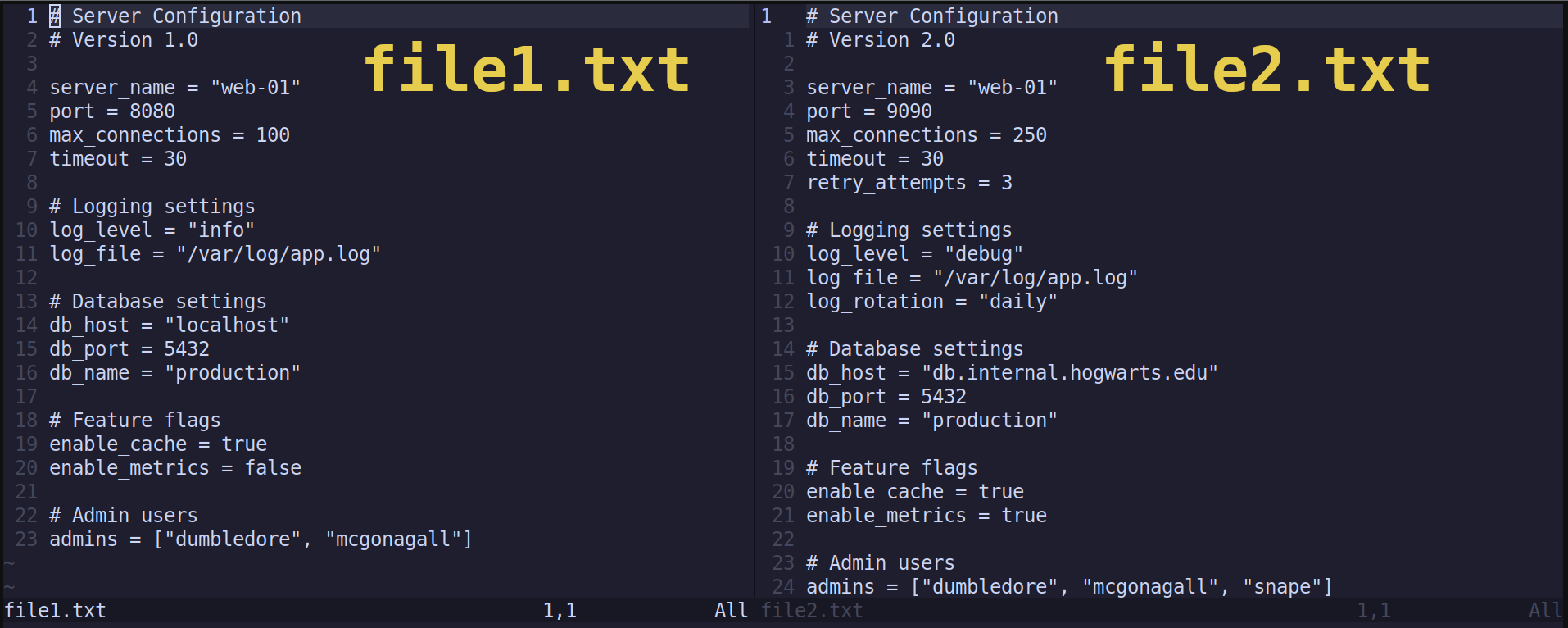
It's doable, but unpleasant. Finding the subtle differences between these two files is taxing. 😩
Now check out how Neovim spots differences for you. Open Neovim in diff mode with the -d option. For example, to compare the same two files, enter nvim -d file1.txt file2.txt.
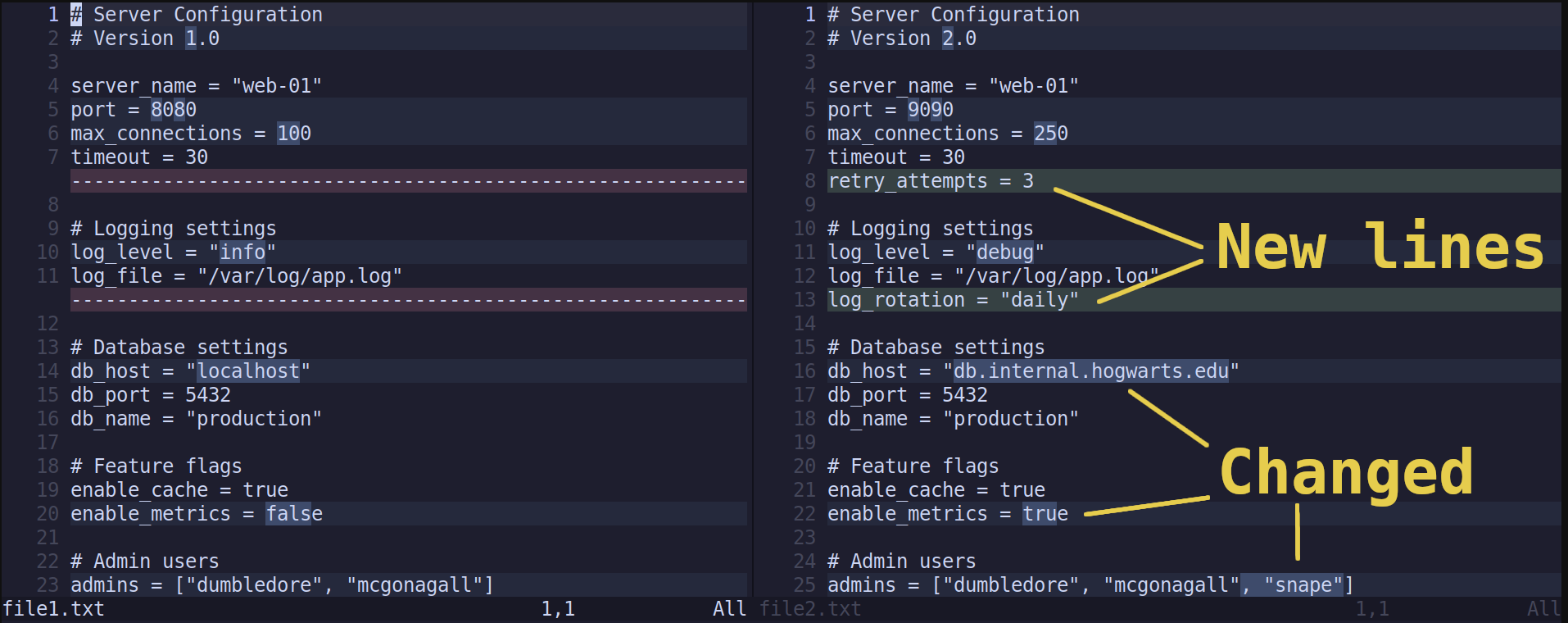
This is looking good. There's still a split view: file 1 on the left and file 2 on the right.
But now there's color-coding! 🤩 Green bars show lines that are present in one file but not the other. For example, file 2 has new lines for retry_attempts and log_rotation.
Red bars in file 1 are fillers, showing there are lines in file 2 that file 1 is missing. The dashes within the red lines (---) don't actually exist in file 1. They're just a visual aid.
Like traffic lights keeping you from that Dunkin coffee, red and green complement each other. If one file has green bars indicating new lines, Neovim will place red bars in the other file. This aligns any lines that are in both files, making it easier to compare the files.
Neovim also marks lines that are similar but with slight differences. Check out db_host at line 14 on the left and line 16 on the right. The two values in quotes (localhost and db.internal.hogwarts.edu) are highlighted. It looks like someone switched to the production database in file 2. It also looks like metrics were enabled (enable_metrics in line 20/22), and snape was added to the admins list (line 23/25).
Navigating Differences
As you move from line to line, you'll see the cursor is synced between the two files. Scrolling within one file causes the other file to scroll as well.
I hear you whining, "But scrolling takes so long." Listen, this is Neovim. There are shortcuts for everything! 💪 Please don't manually move from line to line in diff mode.
You usually want to jump from one difference to the next. Hit ]c to jump to the next change. Throw a [c to go back to the last change. These two commands will teleport you to the parts that matter (i.e. the parts that differ between the files).
Transferring Differences
Cool! After studying the differences, you may want to transfer a section from one file to the other. This can be done in Neovim too.
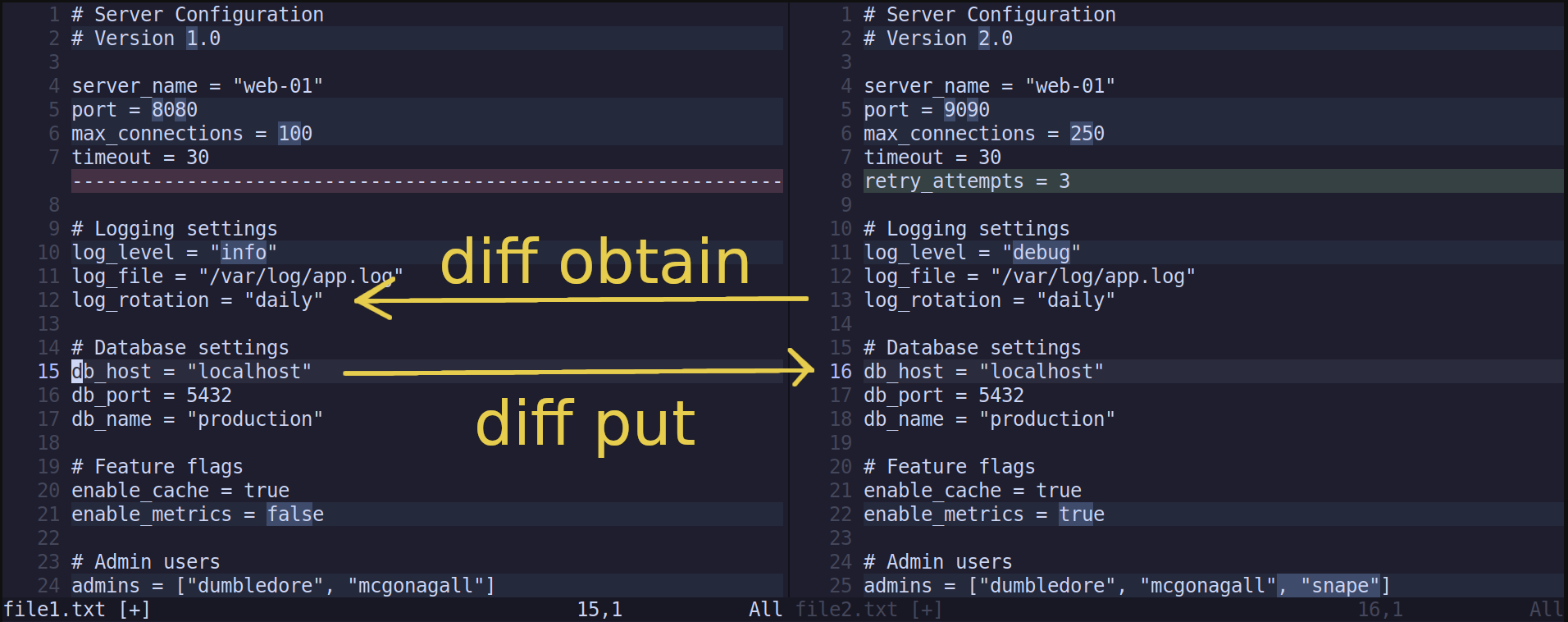
Assume you're in file1.txt, and you see a sweet change in file2.txt. Make sure two things are true: The cursor is over the changed region, and Neovim is in normal mode (i.e. you're not editing text in insert mode). Then press do, which stands for "diff obtain." The do command overwrites the current file's diff section with content from the other file.
Conversely, to push the current file's version to the other file, run dp for "diff put."
Here's how things look after you "obtain" the log_rotation from file 2 and "put" the db_host into file 2:
Another Way to Start Diff Mode
You've seen how to start diff mode from outside Neovim. But what if you already have a file open and want to "diff it" against another file? Call :diffsplit <name-of-2nd-file>. For example, when having file1.txt open, call :diffsplit file2.txt to open the 2nd file and enter diff mode. Well... this will actually open the two files in horizontal orientation, with one window above the other. To enter diff mode with a vertical split (like what we've seen above), call :vert diffsplit file2.txt.
It's worth noting that each window in Neovim can be a part of "diff mode" or not. To add an active window to the "windows being diffed," enter the command :diffthis. To remove an active window from diff mode, enter :diffoff. This means you can have multiple windows open in Neovim. Some windows can be part of the diff mode while others are not.
Ready to quit diff mode entirely? Hit :diffoff! to deactivate diff mode for all windows. Without the exclamation mark, :diffoff only removes the current window from diff mode.
More Files to Diff
Two's fun but three's a party. Neovim's diff mode is not limited to comparing only two files. It can compare up to eight!
Just list more files in the nvim -d command. Here's an example comparing 3 files: nvim -d file1.txt file2.txt file3.txt.
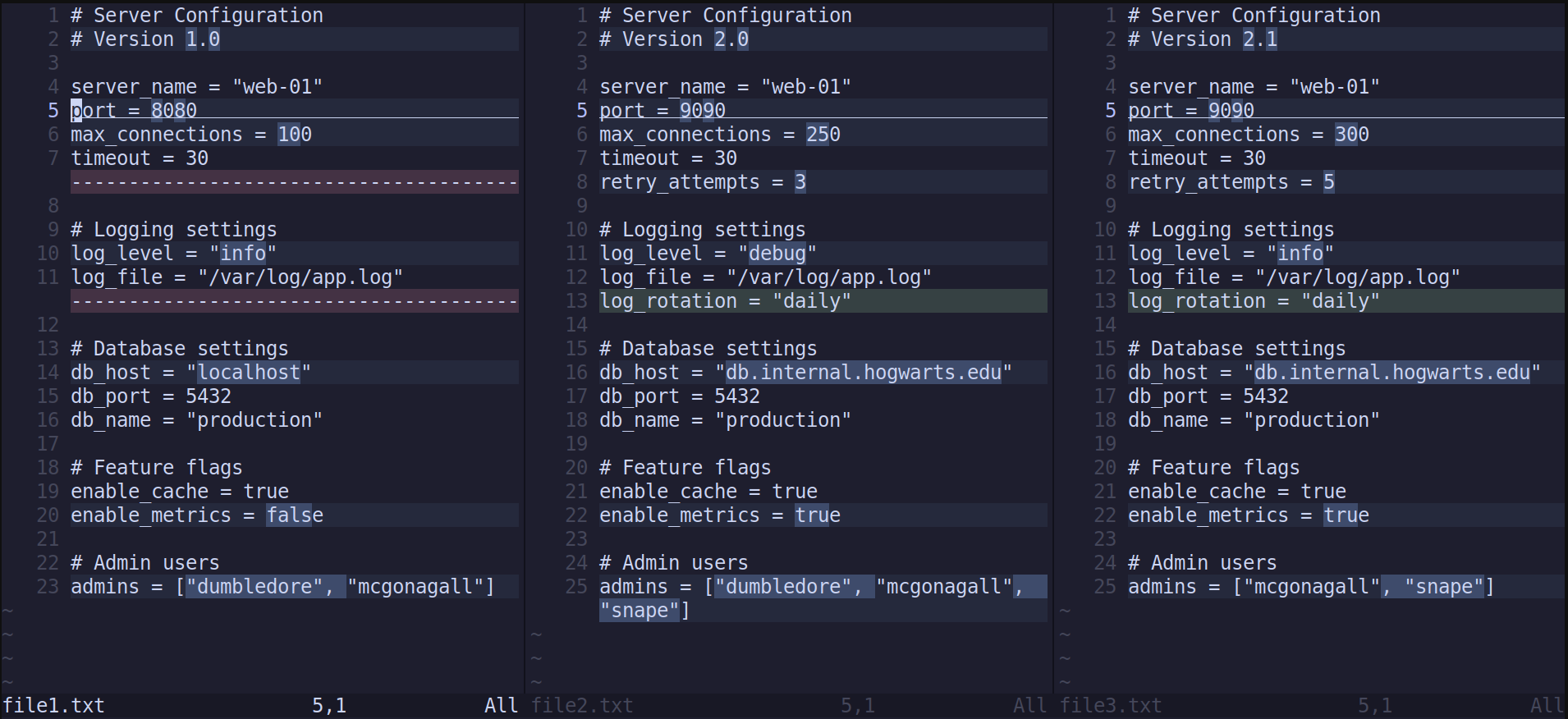
Now each file highlights how it differs from ANY other file. Take a look at the port on line 5. Even though file 2 and file 3 both have 9090, the difference is highlighted because 9090 differs from file 1's port = 8080.
With more than 2 files, transferring content gets a bit tricky. Running do and dp confuse Neovim because it doesn't know which window to "obtain" from or "put" to. That's when the complement :diffget and :diffput commands come in handy. For example, to transfer content from file 1 to file 2, make sure the cursor is focused on file 1 on the region you want to push. Then enter the following in Neovim's command line: :diffput file2.txt. Conversely, to get the text from file 2 into file 1, execute :diffget file2.txt.
Data Engineering Example
As a data engineer, people keep giving me files, even when it's not my birthday. Usually, the files match the format I expect. But every now and then, something changes. The sender generously adds a new column I wasn't expecting. Or worse, an existing column name changes. And of course, it's a surprise. I'm not told about the change. 🙃
So when the production pipeline inevitably breaks, it's time to do some reconnaissance. That's where Neovim comes in.
Here are two versions of a CSV file summarizing students. Somehow the columns have changed between students1.csv and students2.csv:
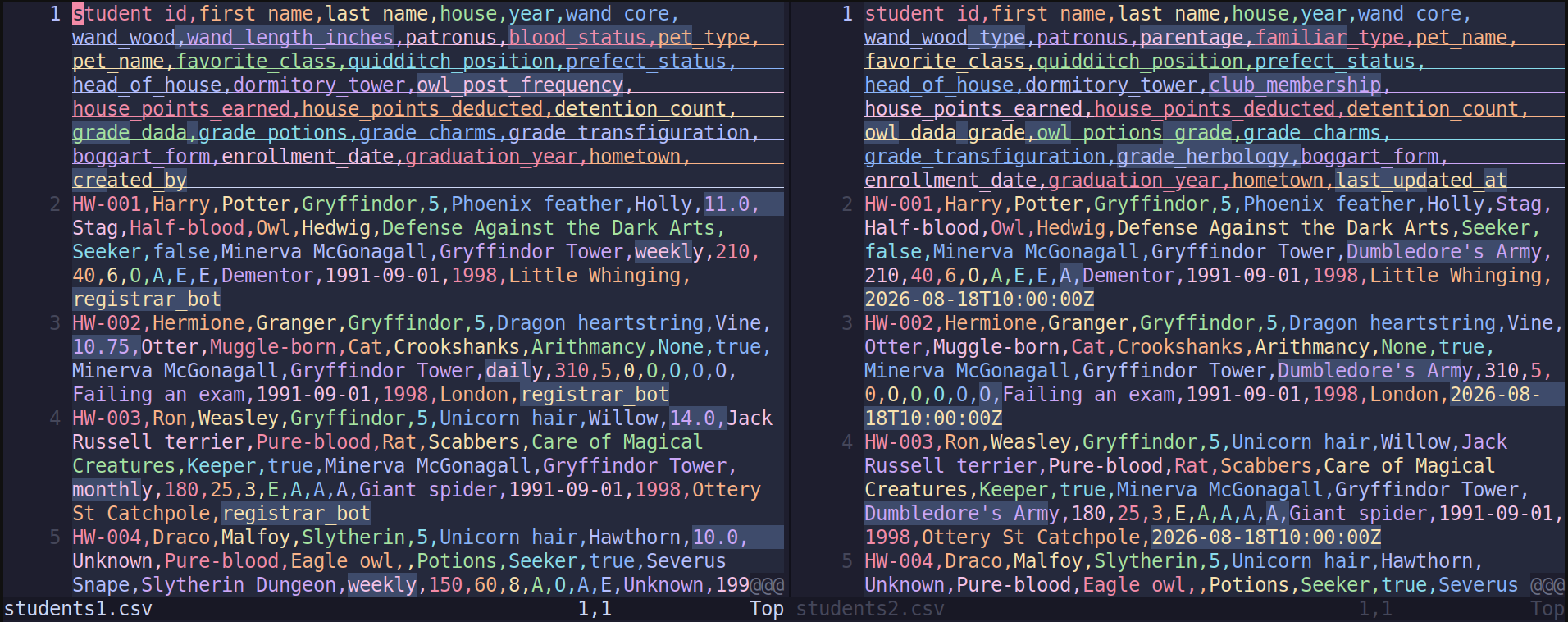
Yeah, I'm not pecking through this rainbow madness. For long lines, it's not easy to see changes in Neovim's diff mode. But with a little massaging, you'll be able to see the column differences.
Run the following commands to extract the column names from each CSV file and pivot them into a vertical list:
head -1 students1.csv | tr ',' '\n' > cols1.txt
head -1 students2.csv | tr ',' '\n' > cols2.txt
This isn't a seminar on Unix tools. Throw these commands into your favorite AI to understand the logic. The short version is this: head gets the 1st row from each file (the column names). tr replaces the commas with a new line character (\n). And the > operator saves the output to a .txt file.
Now compare the column headers by looking at the pivoted versions: nvim -d cols1.txt cols2.txt
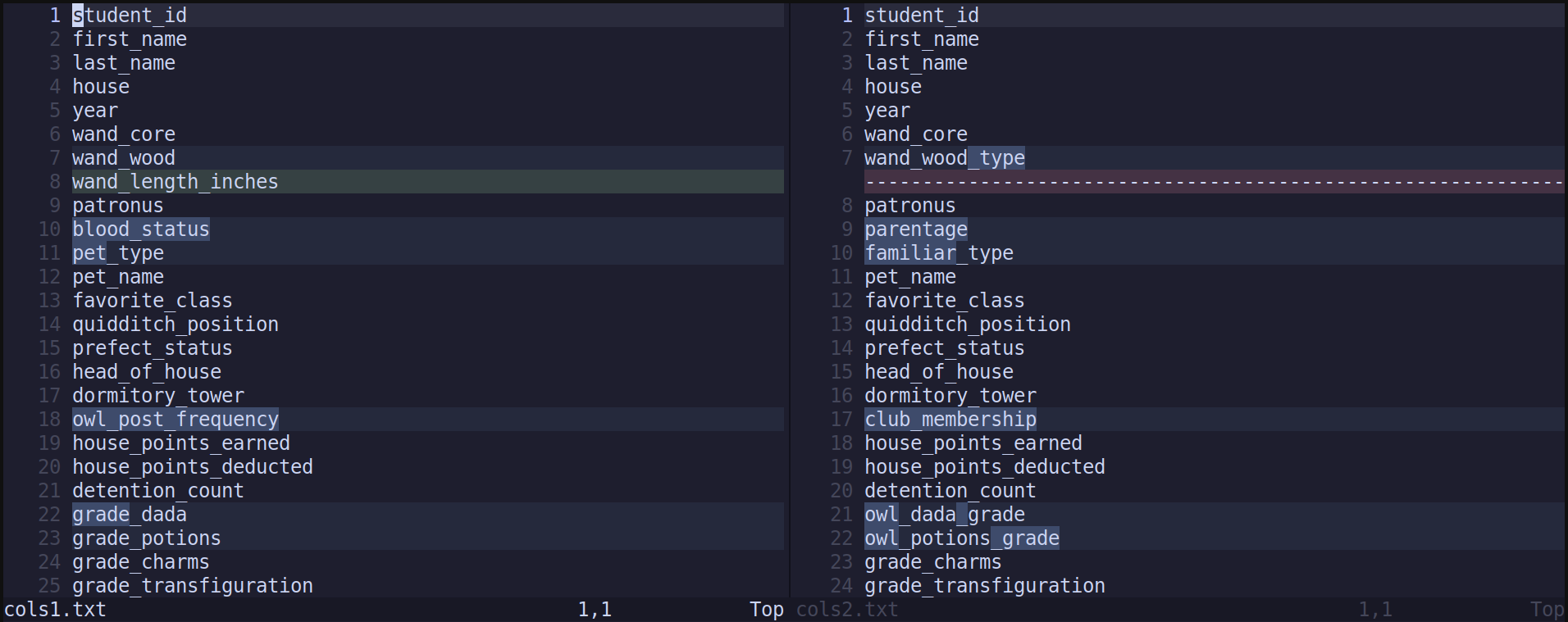
Ah... that's better. You see the wand_length_lines column is removed. The column blood_status is renamed to the more politically correct parentage. So on and so forth... Wonderful!
Sure, there are other ways of catching differences in file formats programmatically. But for a quick adhoc check, Neovim's diff mode comes in handy.
That's all for now!
Here's a cheatsheet on Neovim's diff mode:
| Command | Action |
|---|---|
nvim -d file1.txt file2.txt |
Open files in diff mode from terminal |
:diffsplit file2.txt |
Open 2nd file in diff mode within Neovim |
:diffthis |
Turn on diff mode for current window |
:diffoff |
Turn off diff mode for current window |
:diffoff! |
Turn off diff mode for all windows |
]c |
Jump to next change |
]c |
Jump to previous change |
do (diff obtain) |
Pull change from other window to current window |
dp (diff put) |
Send change from current window to other window |
:diffget |
Alternative to pull change from another window to current window |
:diffput |
Alternative to send change from current window to another window |
The next time you want to see how a file has changed, go to trusty Neovim. It'll show you how two files are as different as Bert and Ernie.
Curious about more workflow tools and improved productivity? You don't need Neovim to find me.